
Turn Your Waitlist Into an Enrollment Process
Track what happens after someone joins your waitlist with flexible statuses, clear workflows, and one organized view of every applicant.
14-day free trial · No credit card required
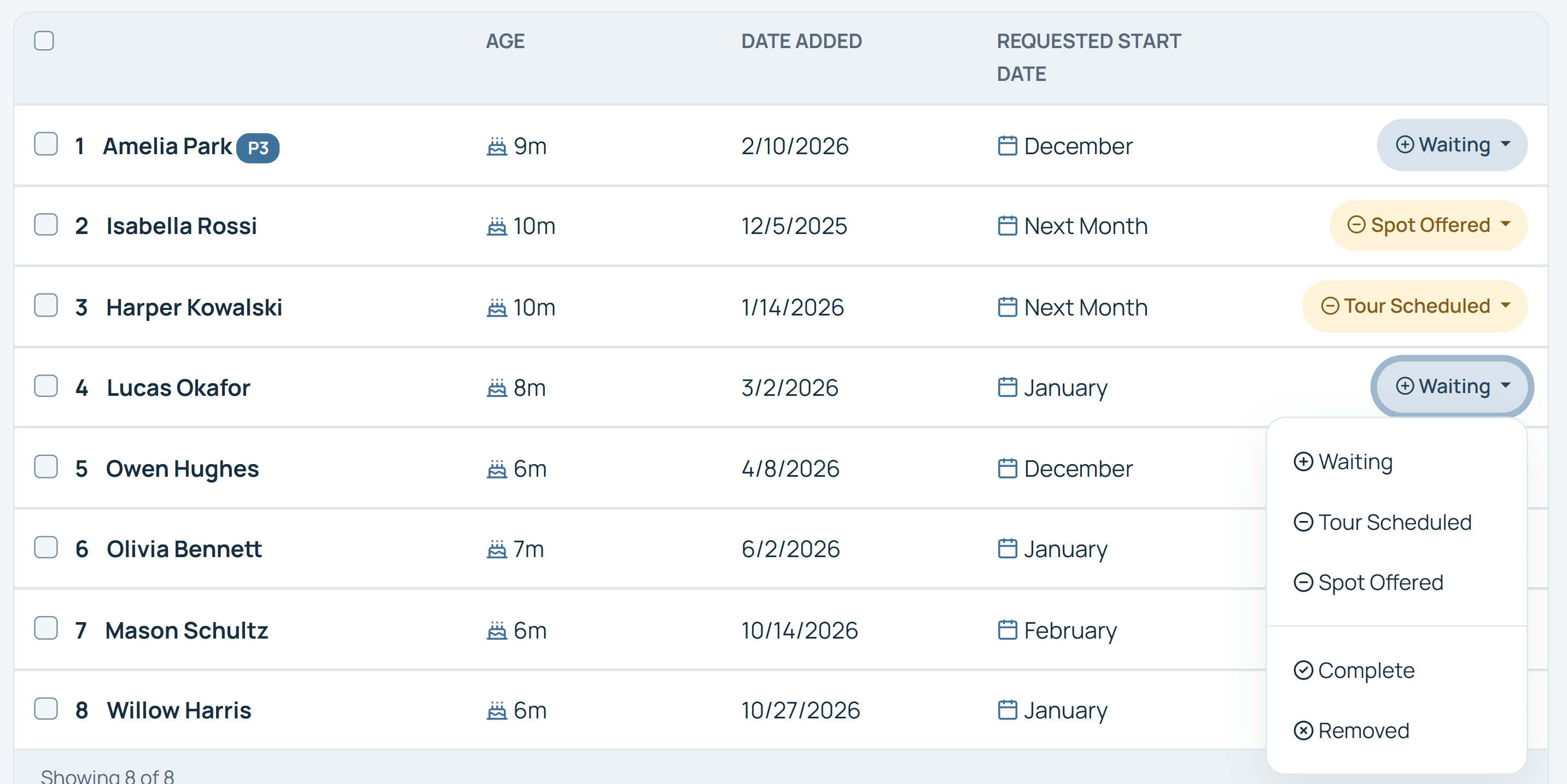
Knowing who's waiting is only the beginning
When an opening becomes available, who should you contact? Who is considering an offer? Who declined? Who enrolled?
Track those steps with your waitlist instead of relying on notes, email, and memory.
Know what happened
See each person’s current status.
Know what happens next
Identify people who need attention.
Keep everyone on the same page
Give administrators a shared view of the process.
Create a workflow that matches your organization
Every organization handles openings differently. Configure statuses that reflect the way your team works.
Childcare
School
Healthcare
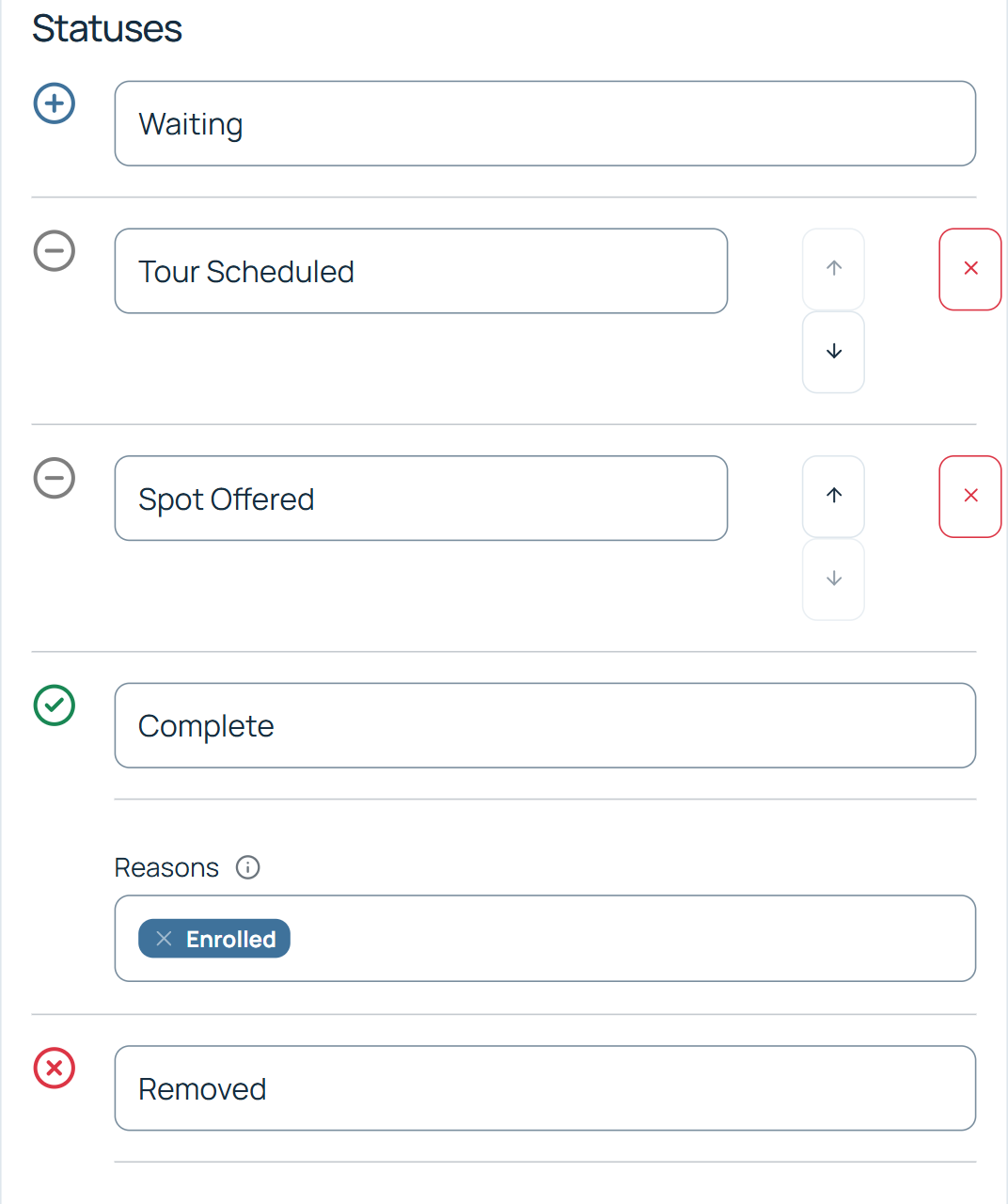
Give each stage a clear role
Complete and Removed statuses take people off the active list. Choose which example label represents the final outcome for your process.
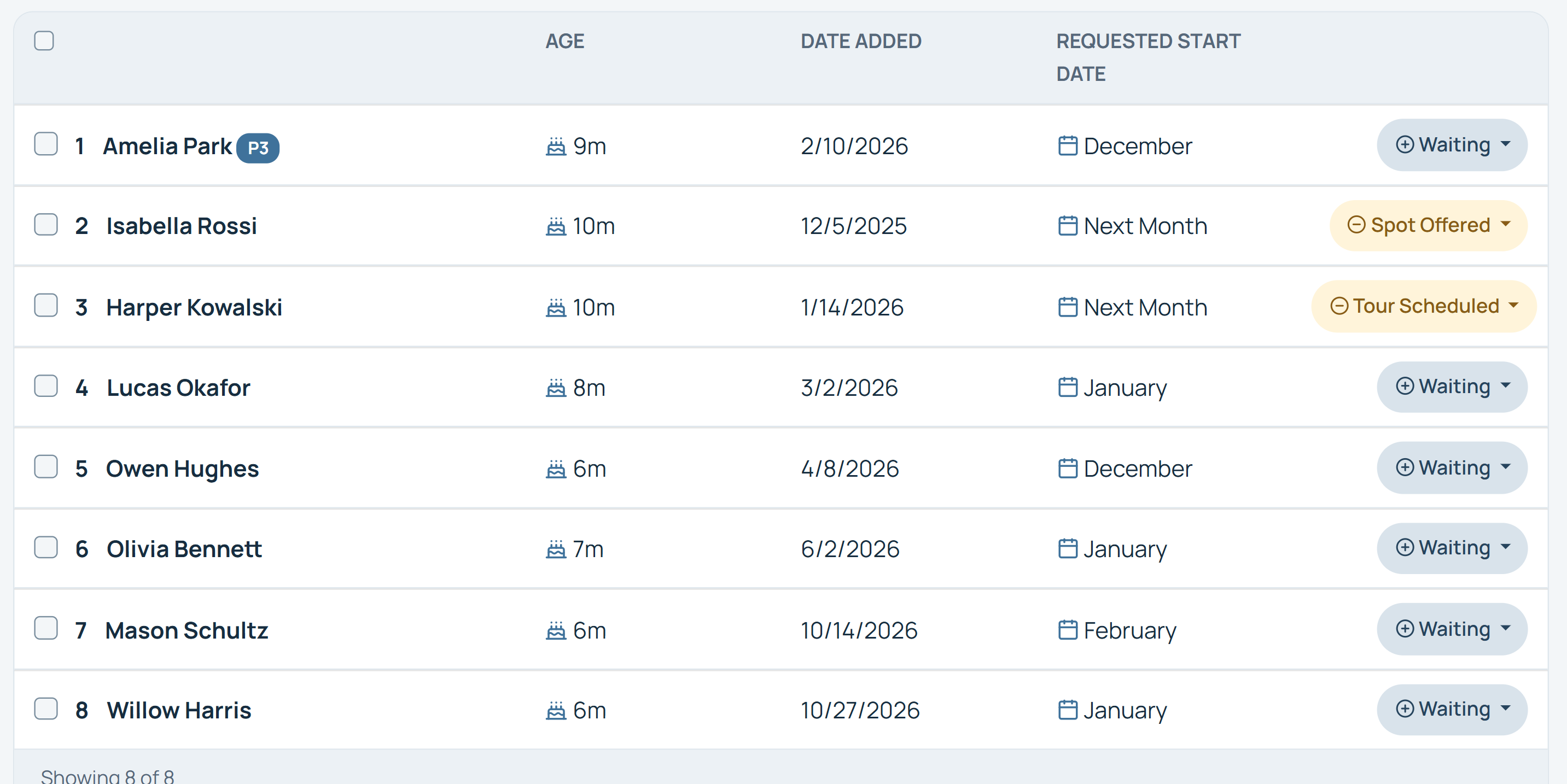
See where everyone stands
Use status information to understand what’s happening across your waitlist.
Filter active lists by entry and intermediate statuses. Completed and removed outcomes remain available in list history and exports.
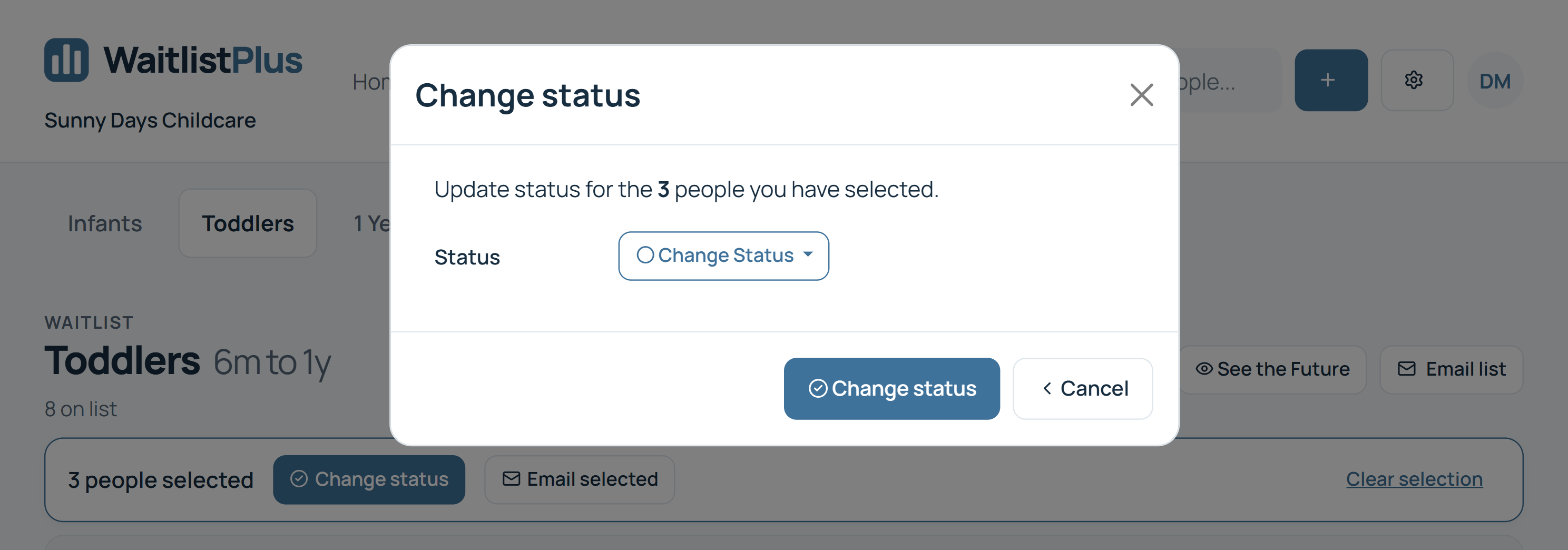
Update more than one person at a time
When the same action applies to several people, bulk updates keep your waitlist current without editing each record individually.
Priority tells you who matters next. Status tells you what happened.
Use priorities and statuses together to maintain a clearer picture of your waitlist.
Who should we consider?
Where are they in the process?
What should happen next?
Connect communication with your process
Contact applicants with WaitlistPlus email tools and keep your administrative process organized.
Waitlisted
Waitlisted
Email Sent
Email Sent
Contacted
Contacted
Offer
Offer
Response
Response
Enrolled
Enrolled
One process from signup to enrollment
WaitlistPlus connects the tools your organization needs before, during, and after someone waits for an opening.
Online Signup →
Organized Waitlist →
Communication →
Contact / Offer →
Enrollment →
Flexible enough for different enrollment processes
Childcare
Track families through tours, offers, and enrollment.
Schools & Education
Track students through your waitlist and admissions workflow.
Healthcare
Track administrative follow-up as availability opens.
A clearer process for your entire team
Less guesswork
See what has already happened.
Fewer disconnected notes
Keep status information with the waitlist.
Easier handoffs
Give administrators a shared view.
Better visibility
See which applicants need attention.
Keep the rest of your process connected
Waitlist Management
Organize people before an opening becomes available.
Email & Communication
Stay in touch throughout the process.
Customer Portal
Give customers appropriate self-service capabilities.
Enrollment Management Frequently Asked Questions
What is waitlist enrollment management?
Waitlist enrollment management tracks people after signup through contact, offers, responses, and the final outcome—such as enrollment or leaving the process.
Can I customize the statuses in WaitlistPlus?
Yes. Rename statuses and add, remove, or reorder intermediate stages in Settings → Site Settings → Status. The product uses entry, intermediate, complete, and removed status types.
Can I filter people by status?
Yes. Use the Filter control on a list to select an entry or intermediate status. Completed and removed people leave the active list; their status information is available in history and exports.
Can I update multiple people at once?
Yes. Select people using the list checkboxes, choose Edit, and select the status to apply. If you have configured removal reasons, completing or removing records prompts for a reason.
Does every organization have to use the same enrollment workflow?
No. Configure status names and intermediate stages to match your organization’s process.
Does WaitlistPlus replace our enrollment or business management software?
WaitlistPlus specializes in waitlist management and the administrative process of moving people toward a final outcome. Keep using your other systems for the broader operational work they handle.
Turn your waitlist into a clear process
Know who's waiting, what's already happened, and what needs to happen next.